The wait is over. iOS 27 is now available to download publicly.
Apple has officially released iOS 27 today, bringing the latest generation of iPhone software to everyone.
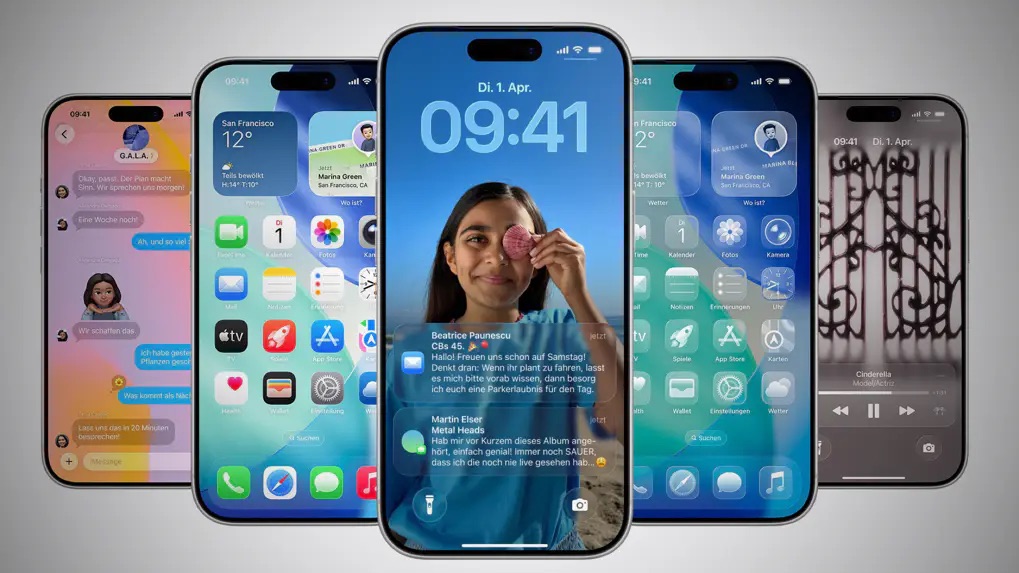
The final public release is build 24A435, the same build Apple released as its Release Candidate last week. (Apple)
And if you prefer doing things the old-fashioned way — or simply want a clean IPSW file ready for a Finder restore — you can download the firmware directly from Apple’s own servers, below.
iOS 27 IPSW downloads
iPhone 11 — Download IPSW
iPhone 11 Pro / 11 Pro Max — Download IPSW
iPhone SE (2nd generation) — Download IPSW
iPhone 12 mini — Download IPSW
iPhone 12 / 12 Pro — Download IPSW
iPhone 12 Pro Max — Download IPSW
iPhone 13 mini — Download IPSW
iPhone 13 — Download IPSW
iPhone 13 Pro — Download IPSW
iPhone 13 Pro Max — Download IPSW
iPhone SE (3rd generation) — Download IPSW
iPhone 14 — Download IPSW
iPhone 14 Plus — Download IPSW
iPhone 14 Pro — Download IPSW
iPhone 14 Pro Max — Download IPSW
iPhone 15 — Download IPSW
iPhone 15 Plus — Download IPSW
iPhone 15 Pro — Download IPSW
iPhone 15 Pro Max — Download IPSW
iPhone 16 — Download IPSW
iPhone 16 Plus — Download IPSW
iPhone 16 Pro — Download IPSW
iPhone 16 Pro Max — Download IPSW
iPhone 16e — Download IPSW
iPhone Air — Download IPSW
iPhone 17 — Download IPSW
iPhone 17 Pro — Download IPSW
iPhone 17 Pro Max — Download IPSW
iPhone 17e — Download IPSW
How to restore iOS 27 using Finder
If you’ve downloaded the IPSW manually, installing it through Finder is pretty straightforward.
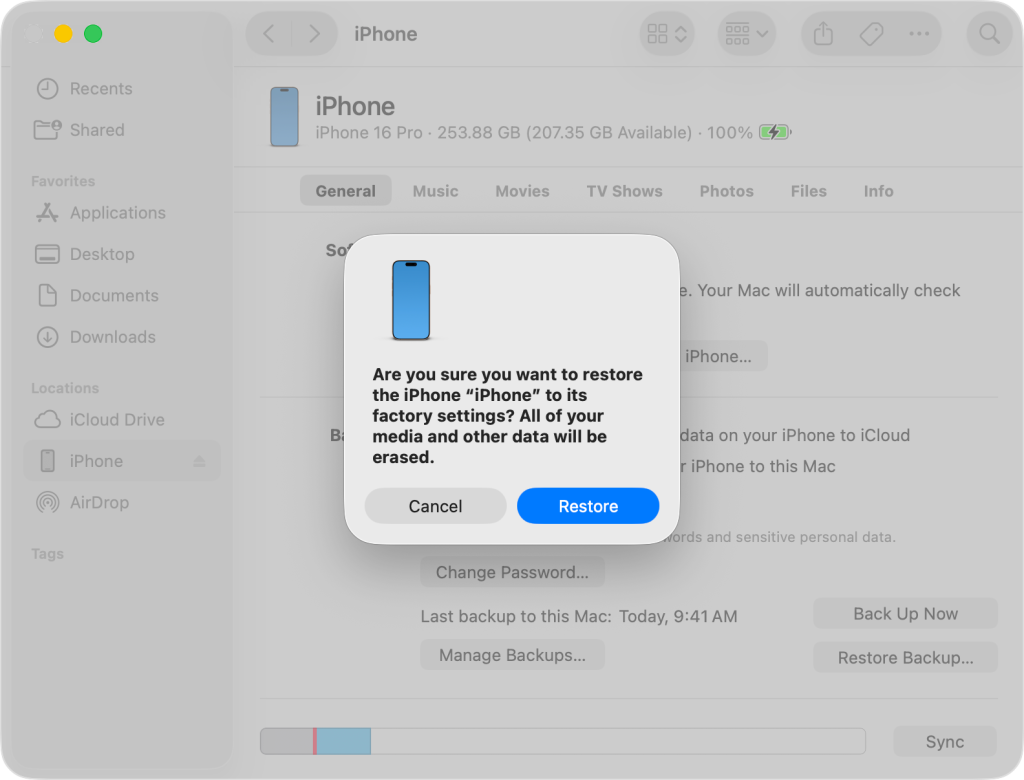
Before you start, make sure you have a current backup of your iPhone. A restore can erase the device, so don’t skip this step.
You’ll also need a Mac running a recent version of macOS and a USB cable capable of connecting your iPhone to the Mac.
1. Connect your iPhone
Connect your iPhone to your Mac using a USB cable and open Finder.
Your iPhone should appear in the Finder sidebar under Locations. Click it to open the device summary.
2. Back up your iPhone
If you haven’t already made a backup, now is the time.
Under the General tab, choose Back Up Now.
For an extra layer of protection, you can select Encrypt local backup if you want your saved passwords and Health data included in the backup.
3. Download the correct IPSW
Download the iOS 27 IPSW above that corresponds to your exact iPhone model.
It’s important to use the correct firmware. An IPSW intended for a different iPhone model won’t install.
4. Hold Option and click Restore
Here’s the slightly hidden bit.
In Finder, hold down the Option (⌥) key on your Mac keyboard and click Restore iPhone…
Finder will open a file picker.
Select the iOS 27 .ipsw file you downloaded and click Open.
5. Confirm the restore
Finder will show the firmware you’re about to install.
Confirm that you want to restore the iPhone.
Finder will then verify the IPSW with Apple and begin installing iOS 27.
Don’t disconnect your iPhone while this is happening.
Your iPhone may restart several times and display the Apple logo with a progress bar. That’s normal.
6. Set up your iPhone
Once the restore has finished, your iPhone will restart and display the setup screen.
You can either set it up as a new iPhone or restore your previous backup during setup.
If you’re restoring because you’re coming off an iOS beta, a clean restore can also be a nice way to start fresh with the final release.
One important thing
Finder doesn’t simply install any IPSW you throw at it. Apple has to be actively signing the version of iOS you’re trying to install.
So while these are direct downloads from Apple’s servers, that doesn’t guarantee that an older or unsigned version can still be restored later.
For iOS 27, however, you’re good to go while Apple is signing build 24A435.
What’s new?
iOS 27 is a pretty substantial release, with Apple’s biggest Siri overhaul yet, new Apple Intelligence capabilities, additional parental controls, changes to Screen Time, improvements across Photos, Messages, Mail and Safari, plus a range of design and usability refinements.
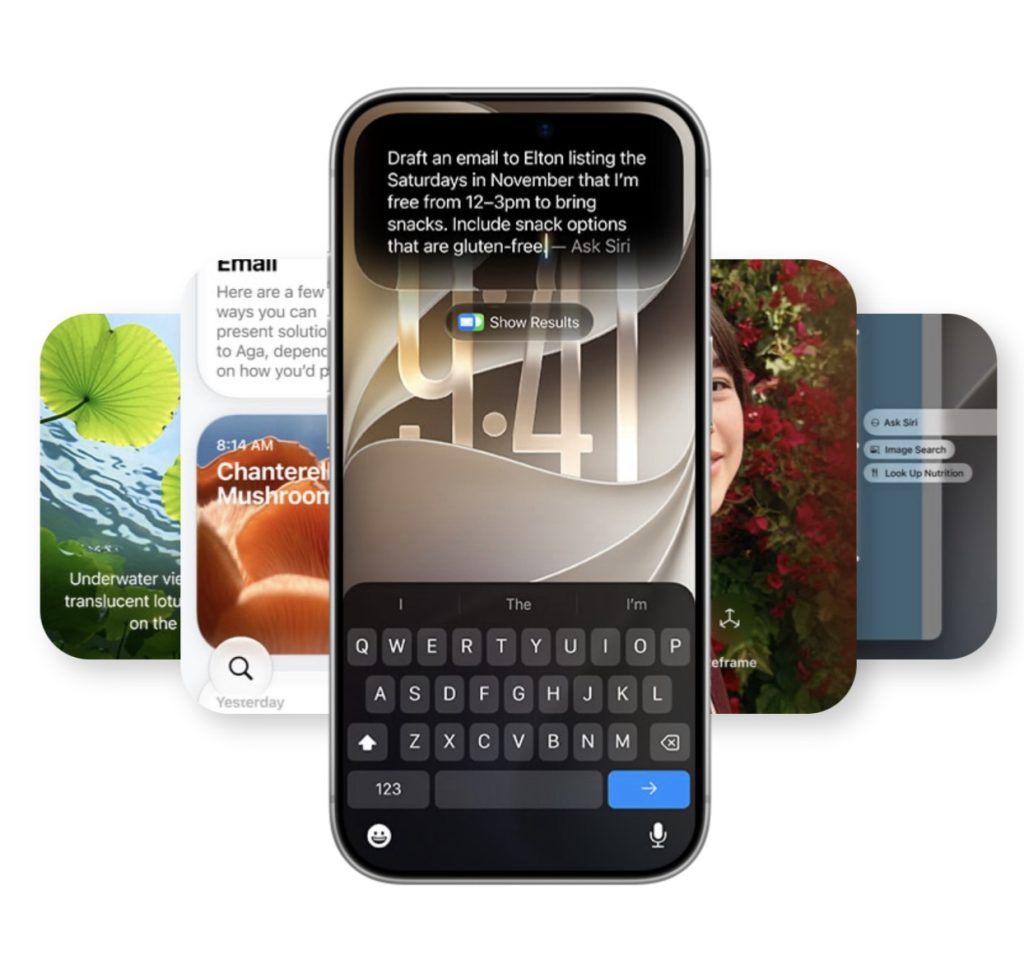
The new Siri AI is particularly notable. Apple describes it as a more capable, conversational Siri with personal context understanding, onscreen awareness, app actions and access to broader world knowledge.
And yes, after months of developer and public beta testing, iOS 27 is finally ready for everyone.
If you’re installing it today, make sure your iPhone is backed up first — especially if you’re coming directly from a beta build.
You can of course also download the update over-the-air by heading to Settings > General > Software Update.
Enjoy!
Comments
4 responses to “iOS 27 is Now Available — Download Here”
[…] to download publicly from today, alongside Apple’s other major software releases including iOS 27 and macOS 27 Golden […]
[…] public, making the latest version of its Apple Watch software available to download today alongside iOS 27, iPadOS 27, macOS 27 Golden Gate and visionOS […]
[…] the release of iOS 27, watchOS 27, visionOS 27 and macOS Golden Gate — the release of tvOS 27 completes this year’s […]
[…] new Siri app is now available on the App Store, arriving alongside the public release of iOS 27 and Apple’s new Siri AI […]